Roastware
Roastware v3.4.0 Update

※ For instructions on how to update Roastware, please refer to the “How to Update Roastware” notice.
※ Once updated, Roastware cannot be rolled back to a previous version.
Release Version : v3.4.0
Update Details
In this Roastware update, the 'Pro Mode' has been added to the S2 model, allowing for fine-tuning of Hot Air. Along with this, a Screensaver feature to protect display life and a safety control system prioritizing user safety have been newly applied to the S2.
Check out the detailed update notes below.
1. Introduction of S2-Exclusive 'Pro Mode' (Fine-tuning Hot Air)
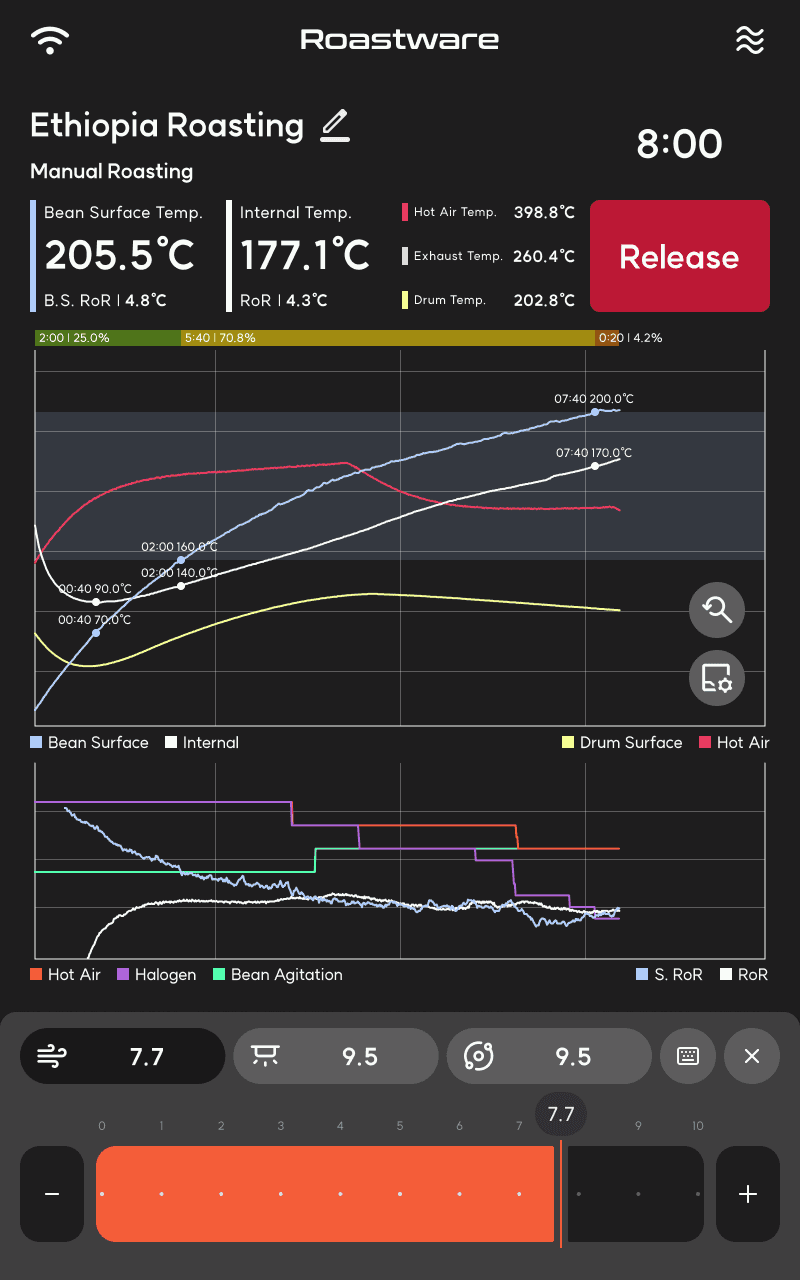
The all-new 'Pro Mode' provides 5x more precise Hot Air control (0.1-increment steps) for more delicate coffee profiles on the S2 model.
Enable 'Pro Mode' in Settings
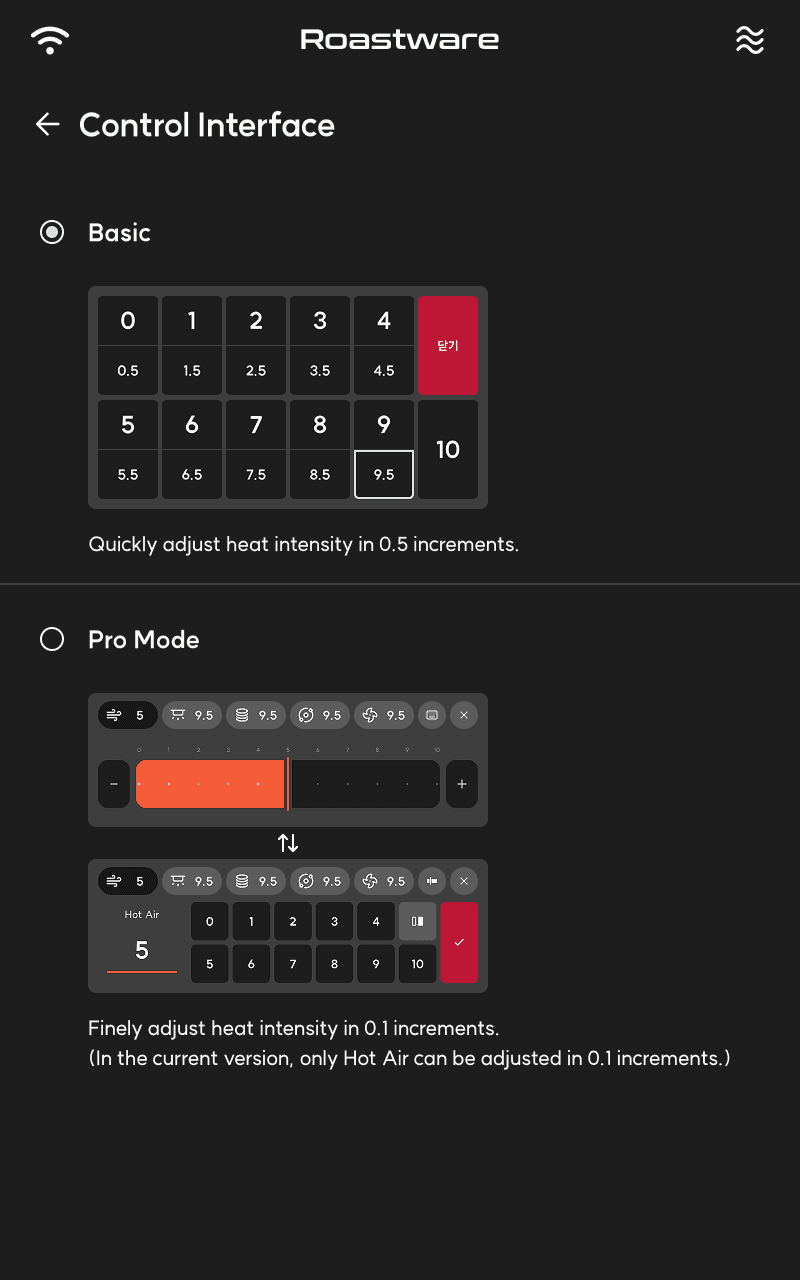
You can enable Pro Mode under Settings > Roasting Settings in the 'Control Interface' setting.
'Pro Mode' Operation Panel Formats
You can change the format of the panel using the format toggle button in the top right corner of the heat control panel.
Intuitive Slider Control
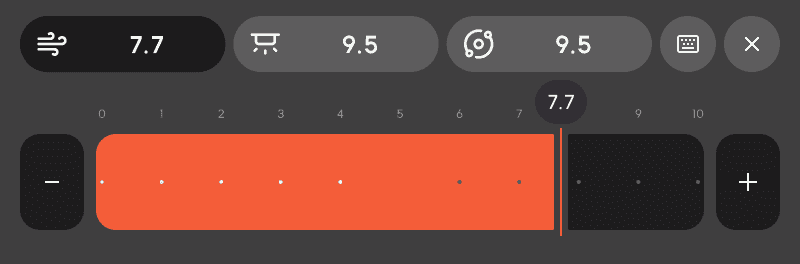
Control the heat intensity by swiping the bottom bar left or right, or by touching the -, + buttons on either side.
Precise Keypad Control
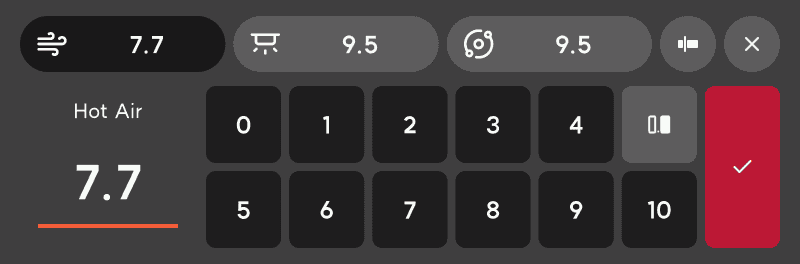
Tap the keypad icon to input the number directly for precise control.
⚠️ Note
Currently, only Hot Air can be adjusted in 0.1 increments on the S2 model. Support for other heat sources and models is planned for the future.
2. S2-Exclusive Screensaver (Standby Mode) Added
Protects the display by preventing screen burn-in (ghosting) that can occur when the machine is left on for a long time.
Enable Standby Mode Setting
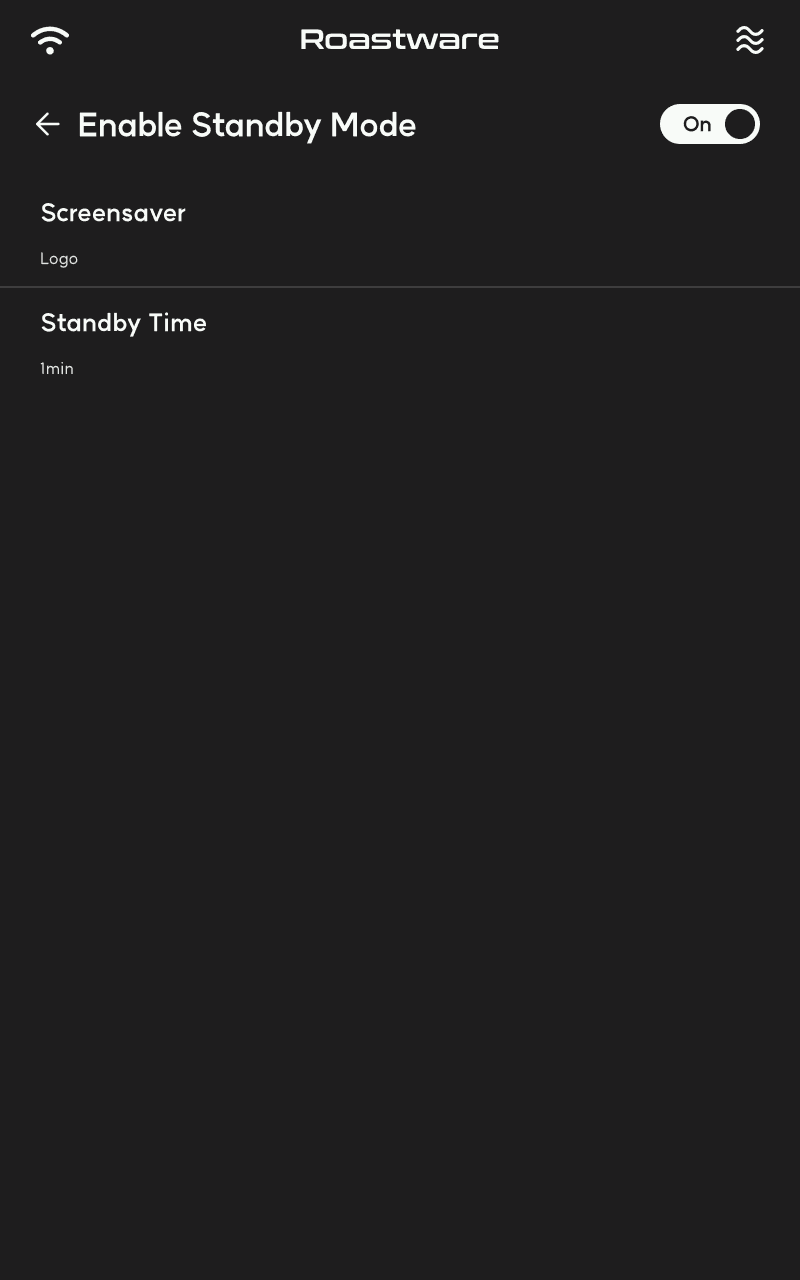
You can decide whether to use standby mode and configure the Screensaver and Standby Timeout under Settings > Device Settings in the 'Enable Standby Mode' setting.
🔎 Standby Mode Activation Condition
If roasting is not in progress and the set standby timeout is exceeded on the main screen (home screen), the Screensaver turns on automatically.
💡 Standby Mode Deactivation Condition
Touching the screen once while in standby mode deactivates it and returns to the main screen.
Screensaver Types
You can choose one of the following for the Screensaver: None, Logo, Clock, Shapes, or Pattern.
Logo | Clock |
|---|---|
 | |
Shapes | Pattern |
⚠️ Note
The Standby Mode feature is currently only available on the S2 model.
3. System Stability and Usability Improvements
The internal system has been upgraded to make the machine operate smarter and safer.
Fix for App Crashes (Common)
Resolved the instability where the app would intermittently crash during specific actions, including:
Navigating the roasting screen and loading charts.
Navigating while displaying popups on the roasting screen.
Editing details during roasting on older devices.
Adjusting the blower levels, which caused crashes during screen navigation due to a timing error (Applies to S8X / S9 / S9X).
Stabilized Data Logging (Common)
Fixed an issue where Roast Logs were intermittently not recorded properly during an emergency release while preheating.
Improved Cloud Synchronization (Common)
Resolved unnecessary redundant communications when uploading Profiles to the server, enhancing app speed and stability.
Advanced Sensor & Error Detection (S2)
Temperature sensor recognition rates have improved, and heat source error detection has been strengthened.
※ Example images are for reference only and may appear differently depending on the roaster in use.